How can we change the date/time in linux?
Ans : Changing date in linux is bit confusing. If you want to change date in GUI its very much easy and if you want to change it when it comes to CLI its bit hard to remember it.
Date is the command to check whats the present date
#date
To change the date use below command
#date MMDDHHMMYYYY.ss
MM => Two digit month value
DD => Two digit day value
HH => Two digit hour value
MM => Two digit minuite value
YYYY => Four digit year value
ss => Two digit seconds value(very rare we will be using this)
Example1 : I want to change the date to Nov 24 1:36 PM 2010
#date 112413362010
Example2 : I want to change the date to Jan 9th 8:05.04 AM 2010
#date 010908052010.04
Now the date will be changed to your required date.
Showing posts with label Basics. Show all posts
Showing posts with label Basics. Show all posts
How To Change The Date In Linux?
0 commentsLabels: Basics, How-To's
Equivalent Tool For WINscp in Linux
0 commentsLabels: Administration, Basics, How-To's
Is there any tool which is equivalent to do what WINscp does in Windows?
Winscp is widely used tool in windows to access any Linux/Nix machine to transfer data(files/folders). Its look similar to FTP client such as filezilla client.
Suppose you are in Linux machine and want to mount(connect) a folder similar to WinSCP with SSH protocol, then this post is for you. This tool will work to connect http, https, ftp, samba share protocols etc.
In Linux we have one utility called nautilus to do this work.
In Linux we have one utility called nautilus to do this work.
Install natutilus
Redhat:
#yum install nautilus
Ubuntu:
#apt-get install nautilus
Try to access Nautilus as shown below in screen by screen shot manner
Go to places and the slect connect to server.
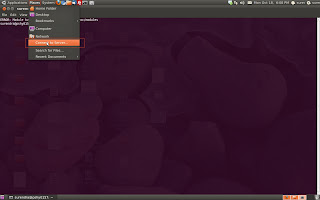
Redhat:
#yum install nautilus
Ubuntu:
#apt-get install nautilus
Try to access Nautilus as shown below in screen by screen shot manner
Go to places and the slect connect to server.

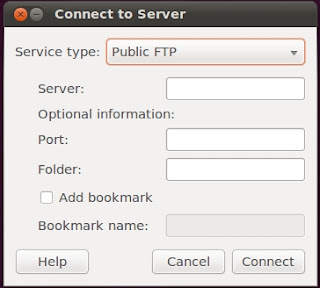
Then select the protocol as ssh.

Then specify the server ip, port where ssh service is running, user name to connect, then press connect

Now it will ask for the user’s password, enter the password and connect it.

This screen shot show the remote server content.

How To Assign Default Gateway In Linux?
0 commentsLabels: Basics, General, How-To's
How to Assign Default gateway in linux?
Ans : In linux Default gateway is set through route command or GUI tools.
Through Route command
#route add default gw default-gateway
Example :
#route add default gw 192.168.0.1
Here 192.168.0.1 is the default gate of my system.
Through GUI tools
Use system-config-network in terminal or GUI to set up default gateway.
How To View Default Gateway In Linux?
0 commentsLabels: Basics, How-To's
This is asked in some of the interviews. We can get default gateway information in linux in many ways. Such as viewing network card file or executing a command.
To see default gateway by view network interface card file content.
#cat /etc/sysconfig/networking/devices/interface-no
Example :
[root@example ~]# cat /etc/sysconfig/networking/devices/ifcfg-eth0
# Intel Corporation 82546EB Gigabit Ethernet Controller (Copper)
DEVICE=eth0
BOOTPROTO=none
HWADDR=00:02:a5:4c:af:99
ONBOOT=yes
TYPE=Ethernet
NETMASK=255.255.255.0
IPADDR=10.200.0.21
GATEWAY=10.200.0.1
Through route command
route
Example:
Kernel IP routing table
Destination Gateway Genmask Flags Metric Ref Use Iface
192.168.0.0 * 255.255.255.0 U 0 0 0 eth1
10.78.0.0 * 255.255.255.0 U 0 0 0 eth0
169.254.0.0 * 255.255.0.0 U 0 0 0 eth1
default 10.200.0.1 0.0.0.0 UG 0 0 0 eth0
Through ip route command
ip route
Example :
[root@example ~]# ip route
192.168.0.0/24 dev eth1 proto kernel scope link src 192.168.0.1
10.78.0.0/24 dev eth0 proto kernel scope link src 10.78.0.21
169.254.0.0/16 dev eth1 scope link
default via 10.200.0.1 dev eth0
Through netstat command
netstat -r
Example:
[root@example ~]# netstat -r
Kernel IP routing table
Destination Gateway Genmask Flags MSS Window irtt Iface
192.168.0.0 * 255.255.255.0 U 0 0 0 eth1
10.78.0.0 * 255.255.255.0 U 0 0 0 eth0
169.254.0.0 * 255.255.0.0 U 0 0 0 eth1
default 10.200.0.1 0.0.0.0 UG 0 0 0 eth0
Note:For any system/server there will be only one default gateway, if suppose if you assign two default gateways to your machine, your system will not come to know where to send the packets.
Notes For Vi Editor
0 commentsLabels: Basics, Editors, Vi Editor
VI editor is the default file editor in most of the Linux/Nix machines. It is having great capabilities to edit a file with in few key strokes.
Lets start with some general information and then move on to some good things what vi editor can do for you while editing a file.
1. Vi stands for visual.
2. Vi have its variants like vim which stands for Vi IMproved, VimX11 for gui and winvi for MS windows.
3. Vi is the most popular editor and next most popular editor is gedit.
4. Do you know there is a book on VI editor from orally which is of 600+ pages.
5. Some other editors which will do the work of editing files are neno, pico, gedit, emacs, joe, nedit, ed etc.
Learning vi editor and remembering them is a very a easy task if you learn it in a systematic way.
a. Modes of VI
b. Navigational commands
c. Editing commands.
d. Search and Replace
e. Save and quiting a file.
a. Modes of VI :
Vi have two mode of operation.
1. Command mode
2. Inserting mode
Command mode :
Vi editor begins in command mode, where cursor movement(navigation in the file) and editing occur. To enter in to command mode from Inserting mode press esc button.
Inserting mode :
Used for entering text, this is similar to notepad in Windows. To enter in to inserting mode you can use any of the following.
i or I => present line
o => one line down the present line
O => one line above
Note : All comments will work in command mode only.
b. Navigational commands :
1. Character navigation k, h, l and j
h => To move one character left.
j => To move one line down.
k => To move one line up.
l => To move one character right.
How to use above commands in clever way?
Examples :
6j => to move 6 lines down from the present courser.
7k => to move 7 lines above from the present courser.
2. Word Navigation
w => word forward.
e =>word forward, but end of the word.
b => one word backward.
Examples :
32w => To move 32 words forward
6b => To move 6 words back.
3. Setting (nu) mbering to lines
:set nu
Removing of (nonu)mbering to lines
:set nonu
4. Moving paragraphs
move one paragraph up => {{
move one paragraph down => }}
5. Moving page up/down
For up => ctrl+b
For down => ctrl+f
6. Moving start/end of the file
Starting of the file(first line => [[
End of the file(last line) => ]]
7. Going to any line :
:lineno
Example :
If we want to go to 56 line then type
:56
c. Editing commands
8. Replace one letter
Replace one letter => r
Delete one letter => x
9. Editing one word
Edit one word => cw
Delete one word => dw
10. Editing one line
Editing a line from courser to the end of that line => d$
11. Cutting
deleting(cutting) one line => dd
Examples :
2dd(deleting/cutting two lines)
12. Pasting
Pasting a line below the courser => p
Pasting a line above the courser => P
13. Coping
Copying one line => yy
Copying n lines => nyy
14. Special commands
joining lines => J
undoing things => u
repeating previous command => .
d. Search and replace
15. Search for a term /term
Example : If you want to search for suresh then press /suresh enter
/suresh
Moving to next occurrence, press "n" with out quotes moving to previous occurrence, press "N" with out quotes.
16. Searching and replacing a term(here separator is / )
:%s/searchterm/replaceterm/g
change default separator
:%s_/home/surya/grade_/home/testing/dest_g
To search and replace particular term from given line to other given line.
:%s294,304/sahana/xyz/g
e)Save and quiting a file
:w => save the file
:q => quit the file
:wq => save and quit
:w! => force save the file
:q! => force quit with out save
:wq => save and quit forcefully
File Types In Linux
0 commentsLabels: Basics, File System, Tutorials
"How many types of files are there and what are they?" This is a common question to every person who started learing Linux.
Why is this so much important to know file types?
Ans : This is because Linux will consider every thing as files. The Answer to this question is little bit confusing with different answers.
Let me put it in this way to clarify. By default Unix have only 3 types of files..
They are.
1. Regular files
2. Directory files
3. Special files(This is the file type who is the culprit for different answers. This catagory is having 5 sub types.)
So Total file types in Linux are 7. Remeber I am saying in linux there are only 7 types of files but if it comes to unix it is 8 types.
Here are those files. And you can see the file type indication at leftmost part of “ls -l” command
1. Regular file(-)
2. Directory files(d)
Special files
3. Block file(b)
4. Character device file(c)
5. Named pipe file or just a pipe file(p)
6. Symbolic link file(l)
7. Socket file(s)
For your information there is one more file called door files(D) which is present in Sun Solaris. A door is a special file for inter-process communication between a client and server(so total 8 types in Unix machines.).
Regular files : These are the files are indicated with "-" in ls -l output. And these files are.1. Readable files or
2. A binary files or
3. Image files or
4. Compressed files etc.
How to create them?
Ans : Use touch command.
Example listing of regular files :-rw-r--r-- 1 krishna krishna 20986522 2010-01-31 13:48 test.wmv
-rw-r--r-- 1 krishna krishna 173448 2010-01-30 21:20 Transformers-Teaser-Wallpaper-310.jpg
-r-xr-xr-x 1 root root 135168 2009-12-12 19:14 VIDEO_TS.VOB
-rw-r--r-- 1 krishna krishna 2113536 2009-12-01 13:32 Aditya 365 – Janavule.mp3
-rwxrwxrwx 1 root root 168 2010-02-14 14:12 xyz.sh
Directory files : These contains the name and location of files/folders/special files stored on a physical device. And this type of files will be in blue in color.
How to create them?
Ans : Use mkdir command
Example listing of directories.drwxr-xr-x 2 surendra surendra 4096 2010-01-19 18:37 bin
drwxr-xr-x 5 surendra surendra 4096 2010-02-15 18:46 Desktop
drwxr-xr-x 2 surendra surendra 4096 2010-01-18 14:36 Documents
drwxr-xr-x 2 surendra surendra 4096 2010-02-13 17:45 Downloads
Block files : These files are hardware files most are present in /dev
How to create them?
Ans : Use fdisk command or create virtual partition.
Example listing of Block files(for you to see these file, they are located in /dev).
brw-rw---- 1 root disk 8, 1 2010-02-15 09:35 sda1
brw-rw---- 1 root disk 8, 2 2010-02-15 09:35 sda2
brw-rw---- 1 root disk 8, 5 2010-02-15 09:35 sda5
Character devices files : Provide only a serial stream of input or output.
Example listing of character files(located in /dev)
crw-rw-rw- 1 root tty 5, 0 2010-02-15 16:52 tty
crw--w---- 1 root root 4, 0 2010-02-15 09:35 tty0
crw------- 1 root root 4, 1 2010-02-15 09:35 tty1
Pipe files : The other sort of pipe is a “named” pipe, which is sometimes called a FIFO. FIFO stands for “First In, First Out” and refers to the property that the order of bytes going in is the same coming out. The “name” of a named pipe is actually a file name within the file system. --www.linux.com
How to create them?Ans : Use mkfifo command.
Example listing of pipe files
prw-r----- 1 root root 0 2010-02-15 09:35 /dev/.initramfs/usplash_outfifo
prw-r----- 1 root root 0 2010-02-15 09:35 /dev/.initramfs/usplash_fifo
prw------- 1 syslog syslog 0 2010-02-15 15:38 /var/run/rsyslog/kmsg
Sybolic link files : These are linked files to other files.
How to create them?
Ans : use ln command
Example listing of linked files
lrwxrwxrwx 1 root root 24 2010-02-15 09:35 sndstat -> /proc/asound/oss/sndstat
lrwxrwxrwx 1 root root 15 2010-02-15 09:35 stderr -> /proc/self/fd/2
lrwxrwxrwx 1 root root 15 2010-02-15 09:35 stdin -> /proc/self/fd/0
lrwxrwxrwx 1 root root 15 2010-02-15 09:35 stdout -> /proc/self/fd/1
Socket files : A socket file is used to pass information between applications for communication purpose
How to create them?
Ans : You can create a socket file using socket() system call avialable under
Example
int sockfd = socket(AF_INET, SOCK_STREAM, 0);
You can refer to this socket file using the sockfd. This is same as the file descriptor, and you can use read(), write() system calls to read and write from the socket.
Example listing of socket files.
srw-rw-rw- 1 root root 0 2010-02-15 09:35 /dev/log
srwxrwxrwx 1 root root 0 2010-02-15 10:07 /var/run/cups/cups.sock
srwxrwxrwx 1 root root 0 2010-02-15 09:35 /var/run/samba/winbindd_privileged/pipe
srwxrwxrwx 1 mysql mysql 0 2010-02-15 09:35 /var/run/mysqld/mysqld.sock
A tip for you guys.
How to find your desired type of a file ?Ans : Use find command with -type option.
For example if you want to find socket file, just use below command.find / -type sIf you want to find linked file then how?Find / -type l
Thats it.. You got it.. :) Enjoy reading..
Commands On Commands
0 commentsLabels: Basic-Commands, Basics, How-To's
I thought of writing a post on some good comamnds which are capable of running on other commands.
With my knowledge i tried to gather below commands, please share your thoughts/experiences through comments.
1.strace -- very much handy when debugging a command/script which will struck in middle of execution. This command will be tough when you start using it initially, but will come hand when start using excessively. And there are some more sister commands for this ie ltrace mtrace which i never used, please give some inputs on these.
For example if we want to see how ls command is executed and want to see what actually ls command is doing? you can check that out by using strace
#strace ls
2.watch --used to see a command executino at a regular intervels(by default 2 sec)
Some valuable examples
a.Monitoring a copy activity of CD/DVD, which will show the progress.
#cp -ar /dev/cdrom /mnt &
#watch ls -l /mnt
b.Watching who are connecting to a system and disconnecting
#watch lsof -i
3.time --To see how much time a command taken to execute, This a handy tool when you want to check how much time your shell script taken to execute.
#time ls
#time shellscript.sh
4.whereis --to find where a command located
#whereis ls
5.whatis --to get one line info on a command
#whatis ls
And a well known man command and info commands to see the details of a command what it can do.
#man ls
#info ls
How To Install SSH Server In Ubuntu Linux OS?
0 commentsLabels: Basics, How-To's, Tutorials
By default in Ubuntu SSH(Secure SHell) server is not installed. This is a big problem when you want to access the Ubuntu machines from other machines we can not access. In this post I will show you how to install and SSH server and give you some examples how to use ssh.
Installing ssh server in ubuntu
#apt-get install openssh-server
Once you install now try to login to that machine
#ssh 0
Note : In this example i am login to same machine, which i am going to check whether service is running or not. We should get successfully login for the above command which will prompt for password.
SSH examples:
Example1 : Login to a remote machine using its hostname
#ssh servername
Note : This will allow us to login to remote server on default ssh port(22)
Example2 : Login to a remote machine using its IP add
#ssh 192.168.0.1
Example3 : Login in to a remote machine which uses different port for running ssh server
#ssh 192.168.0.1 2010
Note : Here SSH server is running on 2010 port(some times this is good practice to secure the system).
Example4 : Login to a remote machine with different user
#ssh user@192.168.0.1
Example5 : Executing commands on remote machine with out login to the machine.
#ssh 192.168.0.1 "ls -l"
Note : This command will execute "ls -l" command on remote host:192.168.0.1 and gives the output on a local machine.
SSH server is a big concept which can not be dealt with in one post. Will try to write another post on SSH server.
How To Access/Change Password For Root Account In Ubuntu
0 commentsLabels: Basics, How-To's, Tutorials, Ubuntu
This post will show you how to login as root in Ubuntu
By default Ubuntu will not allow you to login as root due to security reason.
So how to login as root without knowing its password?
Ans : Here are simple steps to login as root.
Step1 : Login to normal user account
Step2 : Open a terminal and type the below command
$sudo su
Clipped output for your reference
surendra@test:~$ sudo su
[sudo] password for surendra:
root@test:/home/surendra#
So just enter your password you will get root prompt.
Step3 : Now set the password whatever you want. But try to assign a complex password with following criteria for security reasons.
root@test:/home/surendra#passwd
Follow these rules when setting a password.
1) The password should be 8 letter length
2) It should contain Alpha, numeric, symbols etc.
Please comment your thoughts regarding this post:-)
BASH_History_Capabalities
2 commentsLabels: Basic-Commands, Basics
Though this is a basic topic known to many of you, But I want to share so that some one will get new things.
BASH(Broune Again Shell) is the default shell in Linux, which will act as a communicator between Kernel and user. Its having so many capabilities such as
a.Short cuts
b.Command chaining
c.History
As I mention we will see all about BASH shell history capabilities here. And I have divided this BASH capabilities in to three parts like basics, medium and advanced.
Basic capabilities of BASH History:
1.To see all the commands what we executed previously
#history
2.To check the history size of your system
#echo $HISTSIZE
3.To check where is your history file, which stores all your previous commands
#echo $HISTFILE
4.To browse history.
Just press up/down arrow to browse history
5.To see all the commands which have particular word
#history | grep string
Example:
#history | grep cd
Medium capabilities of Bash history:
6.Some times browsing history is very tedious job and some times we are executing some big big commands so there is a capability in Bash to over come this ie search-i-reverse. For doing this press ctrl+r and type a string in previous command which you want to execute.
Lets see it with an example
root@krishna-laptop:~#(reverse-i-search)`se': service winbind restart
if you see above I just pressed ctrl+r and then started to type se, it is showing service winbind restart command, so I no need to type entire command and I have to justent press enter
root@krishna-laptop:~# service winbind restart
* Stopping the Winbind daemon winbind [ OK ]
* Starting the Winbind daemon winbind [ OK ]
root@krishna-laptop:~#
7.Changing the size of history. Most of the Linux machines by default it can store up to 500 previously executed commands. Some people likes to change it to some value, here i want to keep my previously executed 3000 commands.
#HISTSIZE=3000
8.to execute previous command
#!!
or
!-1
9.To execute 25 command in bash history
#!25
10.To execute a recent command which start with a string
#!string
11.To clear all the history
#HISTSIZE=0
or
#history –c
12.In Linux when we execute some command there will be no output of the command, for example useradd or mount -a commands will not give you output saying that command is executed successfully or not at that time we can used the below command to see whether the previous command is executed successfully or not
#echo $?
If the out put of the above command is "0", that indicates previous command executed successfully, for any other values the command is not executed successfully(total there are 256 values, 0-255).
Advanced capabilities of Bash history:
History Modifiersreferences:
http://linux.about.com/od/commands/l/blcmdl3_history.htm
http://www.linuxtopia.org/online_books/redhat_linux_debugging_with_gdb/using-history-interactively.html
http://docstore.mik.ua/orelly/linux/lnut/ch08_06.htm
http://www.catonmat.net/blog/the-definitive-guide-to-bash-command-line-history/
Please comment your thoughts regarding this post:-)
How To Take The Backup Of MBR(Master Boot Recorder)
2 commentsLabels: Administration, Basic-Security, Basics, Boot Troubleshooting, How-To's
1.How to take the backup and restore MBR? Why do you require to take the backup of your MBR?
Ans : MBR (Master Boot Recorder) is a vital part of your hard disk which contains booting information, without it its difficult to boot the system. Suppose you have windows and Linux duel boot on your machine and as you know windows is more prone to virus attacks. So it’s always better to backup your MBR to be in safe place.
2. How to take backup of your MBR?
Ans : Using dd command (dataset definition). Here are the steps to take backup of you MBR and keep it in safe place to restore your system if it get corrupted.
#dd if=/dev/hdx of=/safe/location bs=512 count=1
Let me explain the above command how it will work.
“If” in the command is nothing but to specify Input File, here we are specifying our input file as hard disk(if the hard disk is /dev/hda it is primary master, so for general purpose I given 'x'). “of” in the command is nothing but to specify Output File, here we are specifying our output file as /safe/location. Then “bs” this is nothing but block size to write in to hard disk. And then “count” nothing but how many times you want to write date this many block sizes. Here in this example count=1 that means first 512 bytes of the hard disk is copied to the specified location.
3.How to restore the MBR?
#dd if=/safe/location of=/dev/hdx bs=512 count=1
Note : Please replace “hdx” with your hard disk name.
This is bit complex, Is there any other way to restore MBR?
Yes, if you have Linux or Windows bootable CD, we can easily restore your MBR if you forgot to take backup(And this method is very much easy to do restoration of MBR when compared to previous method).
Method1 : With Redhat Linux bootable CD.
For this you have to boot your system to rescue mode, then mount your file system to rescue mode and execute below command to restore your MBR
#grub-install /dev/hdx
Note : Please replace hdx with your hard disk name. After that you just reboot your system. Your system will be live and working.
Method2 : With Windows XP bootable CD.
Step1 : Boot the system with XP bootable cd
Step2 : Press f8 to go to repair mode in Windows
Step3 : Once you got the c drive prompt just type below command
Fixmbr
This command will fix the MBR record.
Some FAQ’s
1. What is the MBR size?
Ans : MBR size is just 512 bytes.
2.What MBR conations?
Ans : Mainly MBR can be divided in two parts
a.Boot loader information block(which is of 448 bytes)
b. Partition table information(which is of just 64 bytes)
3.How many partition we can create on a hard disk?
Ans : Totally we can create four partitions as below
a.Four primary parathions.
b.Three primary and one extended partition.
c.Two primary and one extended parathion.
d.One primary and one extended parathion.
Note : In extended parathion we can create logical partitions up to 24 in number.
4.Why we cannot create more then 4 partition as mention above?
Ans : In MBR, the partition table info is just stored in 64 bytes, and one parathion information to store in MBR requires 16 bytes of space. So at most you can create only 4 partitions as mention above.
Please Comment your thoughts regarding this post:-)
FILE'S and FOLDER'S Part-2
0 commentsLabels: Basic-Commands, Basics, How-To's, Tutorials
FILES & FOLDERS PART-II
CREATING FOLDERS :
Cmd4a : Creating a single folder.
Example :
#mkdir test
Cmd4b : Creating multiple folders at a time
#mkdir 1{1,2,3}
This command will create folders with name 11,12,13. You can see weather this folders are created or not by using ls or dir command.
Cmd4c : Creating multiple directories and sub directories at a time. This is very much advanced and very much useful command. Some times we have to create a directory structure with sub directories in it. Which are not exist before.
For example I want to create the directory structure as below
/test
/ \
/ \
/ \
user1 user2
/ \ / \
/ \ / \
/ \ / \
apple goa pine tom
So if I want to create these many folders at a time i have to execute the following commands.
First i have to create test directory, then I have to change the directory to it and the create two more directories as user1 and user2 and so on as below.
#mkdir test
#cd test
#mkdir user1
#mkdir user2
#cd user1
#mkdir apple
#mkdir goa
#cd ..
#cd user2
#mkdir pine
#mkdir tom
So you see these many commands i have to execute to create that directory structure. But in linux, its very much easy if you know this option with mkdir command. Execute the mkdir command with -p option it will create subdirectories though they didnt exist.
#mkdir -p test/{user1/{apple,goa}, user2/{pine,tom}}
Thats it you are done. This will create all the folders and sub folders.
Plese visit for remaining posts on files and folders operations..
0
comments
Labels: Basic-Commands, Basics, How-To's, Tutorials
Please check linuxnix.com for updates.
Cmd2 : Creating files using cat command in combination of output redirecting operator(>)
#cat > filename
Once enter this command you have to enter the content of the file and once you finish it just press Ctrl+d this will save the file. Use again ls command to display the files created.
Cmd3 : Creating a file with any editor(either VI,emacs etc)
#vi filename
Once you execute this command the file will be opened and in order to enter any data we have to first press i to go in to insert mode. Once you type the content in to the file just press esc and :wq to save and quit the file.
Have look at other related posts too.
Like the post? Please Subscribe to free RSS feed to get updates
Labels: Basic-Commands, Basics, How-To's, Tutorials
FILES & FOLDERS PART-I
There is one saying in Linux/*nix world, that if you can play with files and folders in Unix you are almost there to become a Unix expert. So let us start our first lesson to become Unix expert by learning about files and folder operations.
CREATING FILES:
Cmd1 : Use touch command to create empty file's
Cmd1 : Use touch command to create empty file's
to create file's
SYNTAX:
#touch filename
Example:
#touch test
#touch test
To create multiple files at a time..
#touch {filename1 filename2 filename3}
#touch {1,2,3}{4,5,6}
The above command will create files with 14,15,16,24,25,26,34,35,36 as names by using this you can create n number of files at a time.
For checking weather your files/folders are created you can use ls command.
#touch {1,2,3}{4,5,6}
The above command will create files with 14,15,16,24,25,26,34,35,36 as names by using this you can create n number of files at a time.
For checking weather your files/folders are created you can use ls command.
Please check linuxnix.com for updates.
Cmd2 : Creating files using cat command in combination of output redirecting operator(>)
#cat > filename
Once enter this command you have to enter the content of the file and once you finish it just press Ctrl+d this will save the file. Use again ls command to display the files created.
Cmd3 : Creating a file with any editor(either VI,emacs etc)
#vi filename
Once you execute this command the file will be opened and in order to enter any data we have to first press i to go in to insert mode. Once you type the content in to the file just press esc and :wq to save and quit the file.
Have look at other related posts too.
All about ISO image files
0 commentsLabels: Basics, Disk-Mgmt, General
ISO IMAGE FILES
What are ISO image files?
An ISO image is an archive file (also known as a disk image) of an optical disc in a format defined by the International Organization for Standardization (ISO). ISO image files typically have a file extension of .iso. The name ISO is taken from the ISO 9660 file system used with CD-ROM media according to wikipedia.org.
So these are the basic points i am going to cover in this post
- How to create an iso file?
- How to mount an iso file?
- How to unmount an iso file?
- How to update an iso file?
- How to write an ISO file to CD?
- How to view content of iso file?
1)How to create an ISO image?
As of now I know two methods to create an ISO file. One is through dd command(disk dump) and other is mkisofs command
A)Creating ISO files from cd-rom/dvd by using dd command
#dd if=/dev/cdrom of=/temp/songs.iso
dd if=/dev/dvd of=/temp/songs1.iso # for dvd
dd if=/dev/scd0 of=/temp/songs2.iso # if cdrom is scsi
Let me explain what actually the above command will do. dd is a disk dump command which will present in most of the Linux/nix systems and "if" specifies input file and "of" specifies output file. So we are specifying to dd command what is our input file and where is our output file.
Here my songs.iso file is created in /temp folder.
B)Creating ISO file using mkisofs command.
Method1:Creating an iso image from cd-rom
#mkisofs /dev/cdrom -o /temp/songs3.iso
Method2:Creating an iso image from a folder
Suppose i am having a folder /opt/data which contains some data to be converted in to .iso file, follow below step
#mkisofs -o /temp/songs4.iso /opt/data
2)How to mount an ISO file?
#mount -o loop /temp/songs4.iso /opt/mountpoint
3)How to unmount an ISO file?
#umount -lf /opt/mountpoint
here /opt/mountpoint is the place where my iso file is mounted.
Get the basic Linux book
0 commentsLabels: Basic-Commands, Basics
This post is for the beginners who want's to start learning linux, which contains
- Introduction
- Shell Tips
- Help
- Re-directing operators
- Basic file system
- System monitoring
- Disk management
- User management
- Text Editors
- Mathematical tools
- Network Management
- Security
- Backup/Restore
- Scheduling
Get the book here.
Kernel Recompilation
2 commentsLabels: Basics
Here I am giving some steps how to complie kernel? By default RedHat will not support the ntfs partitions mounting. So we will do kernel recompilation and get the job done.
Step1 : Before Compiling the kernel the following packages should be installed in order to compile kernel
a. Glib-devel
b. Gcc
c. Ncurscs-devel
d. Binutils
e. Kernel-sourcecode
Step2 : Download the latest kernel from http://www.kernel.org/ and copy the .tar.bz2 file to /usr/src folder
#cd /usr/src
#wget http://kernel.org/pub/linux/kernel/v2.6/linux-2.6.25.4.tar.bz2
#ls
Here you have to see the downloaded file from the kernel.org
Step3 : Now unzip the compressed kernel in the same folder it self
#tar xvfj linux-2.6.25.4.tar.bz2
#ls
Now here you will find a folder with name linux-2.6.25.4
#cd linux-2.6.25.4
Step4 : If you have compiled any kernels previously first you have to clear any unwanted enteris in source kernel
#make mrproper
Step5 : Before recompiling the new kernel we have to take the backup of the old kernel in order to restore it. If in case you face any issues with the new kernel
#make oldconfig
This backed up kernel configs are stored in /usr/src/kernel/.config
Step6 : So now every thing is fine the left part is to compile kernel, to do that we have to execute the following command
#make menuconfig
About this command : Actually kernel have so many modules(like process management, memory management, network management, filesystem management, device managemn) etc, So this command will give a menu kind of list where you can select the different modules.
Linux kernel is Modular kernel, so all the management parts what I have discussed will not be loaded in to kernel at once, The menu will show some check marks.
Type1 : Square brackets []
If you want the module to be part of kernel select it
For example :
[*] indicates yes
[] indicates no
And this <> type of brackets are used to mention wether that option should be a module or built in.
For example :
< > for a feature indicates that feature is not included in the kernel
the feature is inculeded in kernel but it’s a module.
<*>the feature is inculeded in kernel as a built in feature.
So when you execute the above command you will get a menu in this menu select the filesystem->ntfs file system. And save it (here I am giving clear idea about how to select the filesystem type you do your R&D work and get the things done).
Step7 : So now we have to compile this kernel with added features and to create a bz image file
#make
Note : This step will take more time say some 15 to 30 min depends on the features you have selected
Step8 : Once again we have to say to kernel which are reloadable modules by executing the following command
#make modules_install
Step9 : Now we have to execute the follwing command to copy this kernel image to /boot and edit the grub.conf file so that from next boot
#make install
That’s it its done
Some links for your additional :
http://www.digitalhermit.com/linux/Kernel-Build-HOWTO.html
http://www.nongnu.org/lpi-manuals/lpi-102/html/ch01s03.html
http://www.netbsd.org/docs/guide/en/chap-kernel.html
http://www.geekcomix.com/cgi-bin/classnotes/wiki.pl?UNIX02/Kernel_Recompilation
History Of Linux
2 commentsLabels: Basics
1950 : The history of computer operating systems starts in this year, with simple schemes for running batch programs(running programs in groups these prog will not interact with user) efficiently, minimizing idle time between programs.
1960's : Interactive use of systems started to gain ground. Not only interactive use, but having several people use the same computer at the same time(noting but multi user), from different terminals. Such systems were called time-sharing systems and were quite a challenge to implement compared to the batch systems.
1965's : There were many attempts at building good time-sharing systems. Some of these were university research projects, others were commercial ones. One such project was Multics, which was quite innovative at the time. It had, for example, a hierarchical file system, something taken for granted in modern operating systems. This multics was the project of combined effort of Bell Lab's, MIT,GE. The Multics project did not, however, progress very well. It took years longer to complete the anticipated and never got a significant share of the operating system market. One of the participants, Bell Labs, withdrew from the project. The Bell Labs people who were involved then made their own operating system and called it as Unix.
1969 : First UNIX 1 was released.
1970-1989 : So many flavers of unix came at this time depending on the lack of feature's in previous systems up to unix 7 was released in this time.
1990 : By this time, Unix had a strong position in the server market and was especially strong in universities. Most universities had Unix systems and computer science students were exposed to them. Many of them wanted to run Unix on their own computers as well. Unfortunately, by that time, Unix had become commercial and rather expensive. About the only cheap option was Minix, a limited Unix-like system written by Andrew Tanenbaum for teaching purpose. There was also 386BSD, a precursor NetBSD, FreeBSD, and OpenBSD, but that wasn't mature yet, and required higher end hardware than many had at home.
Into this scene came Linux, in October, 1991. Linus Torvalds, the author, had used Unix at the University of Helsinki, and wanted something similar on his PC at home. Since the commercial alternatives were way too expensive, he started out with Minix, but wanted something better and soon started to write his own operating system. After its first release, it soon attracted the attention of several other hackers. While Linux initially was not really useful except as a toy, it soon gathered enough features to be interesting even for people uninterested in operating system development.
1960's : Interactive use of systems started to gain ground. Not only interactive use, but having several people use the same computer at the same time(noting but multi user), from different terminals. Such systems were called time-sharing systems and were quite a challenge to implement compared to the batch systems.
1965's : There were many attempts at building good time-sharing systems. Some of these were university research projects, others were commercial ones. One such project was Multics, which was quite innovative at the time. It had, for example, a hierarchical file system, something taken for granted in modern operating systems. This multics was the project of combined effort of Bell Lab's, MIT,GE. The Multics project did not, however, progress very well. It took years longer to complete the anticipated and never got a significant share of the operating system market. One of the participants, Bell Labs, withdrew from the project. The Bell Labs people who were involved then made their own operating system and called it as Unix.
1969 : First UNIX 1 was released.
1970-1989 : So many flavers of unix came at this time depending on the lack of feature's in previous systems up to unix 7 was released in this time.
1990 : By this time, Unix had a strong position in the server market and was especially strong in universities. Most universities had Unix systems and computer science students were exposed to them. Many of them wanted to run Unix on their own computers as well. Unfortunately, by that time, Unix had become commercial and rather expensive. About the only cheap option was Minix, a limited Unix-like system written by Andrew Tanenbaum for teaching purpose. There was also 386BSD, a precursor NetBSD, FreeBSD, and OpenBSD, but that wasn't mature yet, and required higher end hardware than many had at home.
Into this scene came Linux, in October, 1991. Linus Torvalds, the author, had used Unix at the University of Helsinki, and wanted something similar on his PC at home. Since the commercial alternatives were way too expensive, he started out with Minix, but wanted something better and soon started to write his own operating system. After its first release, it soon attracted the attention of several other hackers. While Linux initially was not really useful except as a toy, it soon gathered enough features to be interesting even for people uninterested in operating system development.
first mail from linus to hacker community
From: torvalds@klaava.Helsinki.FI (Linus Benedict Torvalds)
Newsgroups: comp.os.minix
Subject: What would you like to see most in minix?
Summary: small poll for my new operating system
Message-ID: <1991aug25.205708.9541@klaava.helsinki.fi>
Date: 25 Aug 91 20:57:08 GMT
Organization: University of Helsinki
Hello everybody out there using minix -
I'm doing a (free) operating system (just a hobby, won't be big and
professional like gnu) for 386(486) AT clones. This has been brewing
since april, and is starting to get ready.I'd like any feedback on
things people like/dislike in minix, as my OS resembles it somewhat
(same physical layout of the file-system(due to practical reasons)
among other things). I've currently ported bash(1.08) and gcc(1.40),and
things seem to work.This implies that I'll get something practical within a
few months, and I'd like to know what features most people would want. Any
suggestions are welcome, but I won't promise I'll implement them :-)
Linus (torvalds@kruuna.helsinki.fi)
PS. Yes - it's free of any minix code, and it has a multi-threaded fs.
It is NOT protable (uses 386 task switching etc), and it probably never
will support anything other than AT-harddisks, as that's
all I have :-(.
I'm doing a (free) operating system (just a hobby, won't be big and
professional like gnu) for 386(486) AT clones. This has been brewing
since april, and is starting to get ready.I'd like any feedback on
things people like/dislike in minix, as my OS resembles it somewhat
(same physical layout of the file-system(due to practical reasons)
among other things). I've currently ported bash(1.08) and gcc(1.40),and
things seem to work.This implies that I'll get something practical within a
few months, and I'd like to know what features most people would want. Any
suggestions are welcome, but I won't promise I'll implement them :-)
Linus (torvalds@kruuna.helsinki.fi)
PS. Yes - it's free of any minix code, and it has a multi-threaded fs.
It is NOT protable (uses 386 task switching etc), and it probably never
will support anything other than AT-harddisks, as that's
all I have :-(.
Second mail to community:
From: torvalds@klaava.Helsinki.FI (Linus Benedict Torvalds)
Newsgroups: comp.os.minix
Subject: Free minix-like kernel sources for 386-AT
Message-ID: <1991oct5.054106.4647@klaava.helsinki.fi>
Date: 5 Oct 91 05:41:06 GMT
Organization: University of Helsinki
Do you pine for the nice days of minix-1.1, when men were men and wrote their own device drivers?
Are you without a nice project and just dying to cut your teeth on a OS you can try to modify for your
needs? Are you finding it frustrating when everything works on minix? No more all-nighters to get a nifty program working? Then this post might be just for you :-)
As I mentioned a month(?)ago, I'm working on a free version of a minix-lookalike for AT-386 computers. It has
finally reached the stage where it's even usable (though may not be depending on
what you want), and I am willing to put out the sources for wider distribution. It is just version 0.02 (+1 (very
small) patch already), but I've successfully run bash/gcc/gnu-make/gnu-sed/compress etc under it.
Sources for this pet project of mine can be found at nic.funet.fi (128.214.6.100) in the directory /pub/OS/Linux.
The directory also contains some README-file and a couple of binaries to work under linux
(bash, update and gcc, what more can you ask for :-). Full kernel source is provided, as no minix code has been
used. Library sources are only partially free, so that cannot be distributed currently. The system is able to compile
"as-is" and has been known to work. Heh. Sources to the binaries (bash and gcc) can be found at the
same place in /pub/gnu.
Linux itself is only the kernel of an operating system. The kernel is the part that makes all other programs run. It implements multitasking, and manages hardware devices, and generally enables applications to do their thing. All the programs that the user (or system administrator) actually interacts with are run on top of the kernel. Some of these are essential : for example, a command line interpreter (or shell), which is used both interactively and to write shell scripts (corresponding to .BAT files). Linus did not write these programs himself, and used existing free versions instead. This reduced greatly the amount of work he had to do to get a working environment. In fact, he often changed the kernel to make it easier to get the existing programs to run on Linux, instead of the other way around.
Most of the critically important system software, including the C compiler, came from the Free Software Foundation's GNU project. Started in 1984, the GNU project aims to develop an entire Unix-like operating system that is completely free. To credit them, many people like to refer to a Linux system as a GNU/Linux system. (GNU has their own kernel as well).
During 1992 and 1993, the Linux kernel gathered all the necessary features it required to work as a replacement for Unix workstations, including TCP/IP networking and a graphical windowing system (the X Window System). Linux also received plenty of industry attention, and several small companies were started to develop and distribute Linux. Dozens of user groups were founded, and the Linux Journal magazine started to appear in early 1994.
Version 1.0 of the Linux kernel was released in March 1994. Since then, the kernel has gone through many development cycles, each culminating in a stable version. Each development cycle has taken a year or three, and has involved redesigning and rewriting large parts of the kernel to deal with changes in hardware (for example, new ways to connect peripherals, such as USB) and to meet increased speed requirements as people apply Linux to larger and larger systems (or smaller and smaller ones : embedded Linux is becoming a hot topic). Now the latest version of linux is 2.6.33.3
Soon Linus faced some confrontation from none other than Andrew Tanenbaum, the great teacher who wrote MINIX. In a post to Linus, Tanenbaum commented:
| "I still maintain the point that designing a monolithic kernel in 1991 is a fundamental error. Be thankful you are not my student. You would not get a high grade for such a design :-)" (Andrew Tanenbaum to Linus Torvalds) |
Linus later admitted that it was the worst point of his development of Linux. Tanenbaum was certainly the famous professor, and anything he said certainly mattered. But he was wrong with Linux, for Linus was one stubborn guy who won't admit defeat. Tanenbaum also remarked that : "Linux is obsolete". Now was the turn for the new Linux generation. Backed by the strong Linux community, Linus gave a reply to Tanenbaum which seems to be most fitting:
| Your job is being a professor and researcher: That's one hell of a good excuse for some of the brain-damages of minix. (Linus Torvalds to Andrew Tanenbaum) |
And work went on. Soon more than a hundred people joined the Linux camp. Then thousands. Then hundreds of thousands. This was no longer a hackers toy. Powered by a plethora of programs from the GNU project, Linux was ready for the actual showdown. It was licensed under GNU General Public License, thus ensuring that the source codes will be free for all to copy, study and to change. Students and computer programmers grabbed it.
Soon, commercial vendors moved in. Linux itself was, and is free. What the vendors did was to compile up various software and gather them in a distributable format, more like the other operating systems with which people were more familiar. Red Hat , Caldera, and some other companies gained substantial amount of response from the users worldwide. While these were commercial ventures, dedicated computer programmers created their very own volunteer-based distribution, the famed Debian. With the new Graphical User Interfaces (like X-window System, )the Linux distributions became very popular.
Meanwhile, there were amazing things happening with Linux. Besides the PC, Linux was ported to many different platforms. Linux was tweaked to run 3Com's handheld PalmPilot computer. Clustering technology enabled large number of Linux machines to be combined into a single computing entity, a parallel computer. In April 1996, researchers at Los Alamos National Laboratory used Linux to run 68 PCs as a single parallel processing machine to simulate atomic shock waves. But unlike other Supercomputers costing a fortune, it was rather cheap. The do-it-yourself supercomputer cost only $152,000, including labor (connecting the 68 PCs with cables)-about one tenth the price of a comparable commercial machine. It reached a peak speed of 19 billion calculations per second, making it the 315th most powerful supercomputer in the world. And it was a robust one too. Three months later it still didn't have to be rebooted.

A Beaming Linus Today
The best thing about Linux today is the fanatic following it commands. Whenever a new piece of hardware is out, Linux kernel is tweaked to take advantage of it. For example, within weeks after the introduction of Intel Xeon® Microprocessor, Linux kernel was tweaked and was ready for it. It has also been adapted for use in Alpha, Mac, PowerPC, and even for palmtops, a feat which is hardly matched by any other operating system. And it continues its journey into the new millennium, with the same enthusiasm that started one fine day back in 1991.

Linus in 2002
As for Linus, he remains a simple man. Unlike Bill Gates, he is not a billionaire. Having completed studies, he moved to USA and landed a job at Transmeta Corporation. After conducting a top-secret research and development project, Transmeta launched the Crusoeâ„¢ processor. Linus was an active member of the research team. Recently married to Tove, he is the proud father of a girl, Patricia Miranda Torvalds. But he remains as the world's most favorite and most famous programmer to this date. Revered by Computer communities worldwide, Linus is by far the most popular programmer on this planet.
Addtional info related to OS's:
Different types of unix's
| 1BSD 2BSD 3BSD 4BSD 4.4BSD Lite 1 4.4BSD Lite 2 386 BSD Acorn RISC iX Acorn RISC Unix AIX AIX PS/2 AIX/370 AIX/6000 AIX/ESA AIX/RT AMiX AOS Lite AOS Reno ArchBSD ASV Atari Unix A/UX BOS BRL Unix BSD Net/1 BSD Net/2 BSD/386 BSD/OS CB Unix Chorus Chorus/MiX Coherent CTIX CXOs Darwin Debian GNU/Hurd DEC OSF/1 ACP DesktopBSD | Digital Unix DragonFly BSD Dynix Dynix/ptx ekkoBSD Eunice FireFly BSD FreeBSD FreeDarwin GNU GNU-Darwin Gnuppix GNU/Hurd-L4 HPBSD HP-UX HP-UX BLS IBM AOS IBM IX/370 Interactive 386/ix Interactive IS IRIS GL2 IRIX Linux Lites LSX Mac OS X Mac OS X Server Mach MERT MicroBSD Mini Unix Minix Minix-VMD MIPS OS RISC/os MirBSD Mk Linux Monterey more/BSD mt Xinu | MVS/ESA OpenEdition NetBSD NeXTSTEP NonStop-UX Open Desktop Open UNIX OpenBSD OpenDarwin OpenServer OpenSolaris OPENSTEP OS/390 OpenEdition OS/390 Unix OSF/1 PC-BSD PC/IX Plan 9 Plurix PWB PWB/UNIX QNX QNX RTOS QNX/Neutrino QUNIX ReliantUnix Rhapsody RISC iX RT SCO UNIX SCO UnixWare SCO Xenix SCO Xenix System V/386 Security-Enhanced Linux Silver OS Sinix Sinix ReliantUnix Solaris SPIX | SunOS Triance OS Tru64 Unix Trusted IRIX/B Trusted Solaris Trusted Xenix TS Tunis UCLA Locus UCLA Secure Unix Ultrix Ultrix 32M Ultrix-11 Unicos Unicos/mk Unicos/mp Unicox-max UNICS UniSoft UniPlus  UNIX 32V UNIX Interactive UNIX System III UNIX System IV UNIX System V UNIX System V Release 2 UNIX System V Release 3 UNIX System V Release 4 UNIX System V/286 UNIX System V/386 UNIX Time-Sharing System UnixWare UNSW USG Venix Xenix OS Xinu xMach z/OS Unix System Services |
Here is now some unixes that are not [yet] in my chart. Some web sites have listed them, like this site or this site. If you want to find more unixes, try Google :-)
| ABCenix ACIX AD Altos System V ARIX AurOS BOS/X C Executive CLIX Consensys Unix Concentrix ConvexOS CPIX Cromix CX/UX DC/OSx Dell Unix | DG/UX DISTRIX DNIX DomainOS DRM System DTIX DVIX ENIX EP/IX Esix SVR4 Eurix FOR:PRO FreeMiNT FTX Genix HCR Helios | HEP-UPX HI-UX IDRIS INOS LSX LynxOS MachTen MacMach MAXION/OS MCS Micronix Microport SVR4 MicroPort Unix Mimos MMOS MP-RAS UNIX MST UNIX | Mulplix Munix NachOS NCR Unix NDIX News-OS NUXI Oasis ONIX OPUS OS 9 OS/MP OSx PCUNIX PNX QNIX Regulus | RT/EMT RTUX SORIX SOX Sphinx SPP-UX Stellix SUNIX Super-UX System B Thix TI System V TNIX Topix TOS Tropix UHC Unix | Umax Uniq Unisis Unity UNOS UTEK UTS UTX/32S UX UXP/DS UZIX VM/IX VOLVIX Xoftnix Zeus |
home page's of different people who are resposiable for development of OS(unix and linux):
Brian Kernighan
http://cm.bell-labs.com/cm/cs/who/bwk/index.html
Dennis Ritchie
http://cm.bell-labs.com/cm/cs/who/dmr/index.html
Ken Thompson
http://plan9.bell-labs.com/who/ken/
The above three are responsable for unix first version.
Different types of Linux's
The below site will give u different types of linux's
The below guy responsable for linux develepment
Linus Torvalds
http://www.cs.helsinki.fi/u/torvalds/
And last but not least see the link below
http://www.catb.org/~esr/faqs/linus/
Q & A
1. When is first UNIX introduced?
Ans : 1969.
2. What is the present version of RedHat Enterprice Linux (by april 2007)?
Ans : RHEL5.
3. What is the present version of linux kernel (by april 2007)?
Ans : Precent version of linux kernel is 2.6.20.7.
4. What is the kernel type used bye linux?
Ans : Modular kernel (i will explain this in comming class ie in 133 classes).
5. State some Unix flavers you know?
Ans : Free BSD, NetBSD, OpenBSD, HP Unix(from HP), Solaries (from Sun micro systems).
6. State some Linux flavers you know?
Ans : RHEL, Fedora, CentOS, Ubuntu, Lindows(which have features of linux and MS window's), Suse, Debain etc.
7. What is the main difference between fedora and RHEl?
Ans : a.RedHat will give support to only for RHEL but not for Fedora with some charge.
b. Fedora is a open source no help is provided by RedHat user group's will provide help for this Fedora.
c. For every 2 years RHEL will be released where as Fedora is for very 6 months.
8. What is the different OS released from RedHat in the devision of RHEL side?
Ans : a. RedHat Desktop
b. RedHat Enterprice server
c. RedHat Advanced Server
d.RedHat work station.
Ans : a. RedHat Desktop
b. RedHat Enterprice server
c. RedHat Advanced Server
d.RedHat work station.
9. What is the difference between Uinx and Linux?
a. unix is monolithic kernel where as linux uses modular kernel.
b. some commands will differ
c. unix is commersial where as linux is free
d. linux support different hardware you can install linux on notebook too.
a. unix is monolithic kernel where as linux uses modular kernel.
b. some commands will differ
c. unix is commersial where as linux is free
d. linux support different hardware you can install linux on notebook too.
10.What is the difference between linux and window's?
Ans : The given below link is enough
http://www.michaelhorowitz.com/Linux.vs.Windows.html
Ans : The given below link is enough
http://www.michaelhorowitz.com/Linux.vs.Windows.html
Subscribe to:
Posts (Atom)


